N
You can use the Student Quiz Results page to allow learners to review past quiz attempts, answers, and scores. Set up the results page ProPanel generates a Student Quiz Results page upon plugin activation. Locate this page under Pages in WordPress. If the page is saved as a draft, open it, review the block layout, and click Publish to make it visible to learners. If creating the page manually, add the Student Quiz Results block pattern within the WordPress block editor. For detailed…
N
You can use ProPanel to identify inactive learners and review course activity. Go to ProPanel > Dashboard, then click View dashboard to access the activity reporting blocks. Find inactive learners The Inactive Users block lists learners who recorded no activity during the selected timeframe and displays their last active timestamp. Choose the date range to review. Use available group and course filters to refine the list. Review each learner’s recorded activity date. Review the Learner Activity…
N
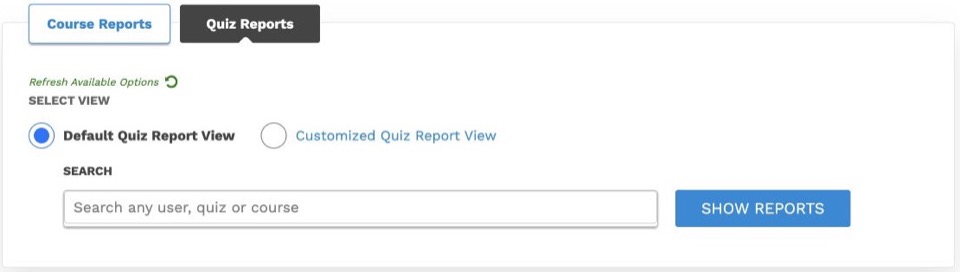
You can use ProPanel to review quiz completion, time spent, pass rates, and attempts. Go to ProPanel > Dashboard, click View dashboard, then select Quiz Reports in Report Tools. View quiz attempts The Quiz Reports block displays tabular data for the selected report view: Default Quiz Report View: Lists individual quiz attempts. Search for a learner, quiz, or course, then click Show Reports. The attempt table includes individual download controls and a Bulk Export option. Customized Quiz Report…
N
You can use ProPanel’s course reports to review revenue, enrollments, learner progress, and completion. Go to ProPanel > Dashboard, click View dashboard, then choose a date range and apply the course filters you need. Summary counters The dashboard includes four counters: Total Revenue: Course revenue for the selected period compared against the prior equivalent period. Total Courses: The course count for the selected period compared against the prior equivalent period. Total Learners: The…
N
You can use the ProPanel Dashboard to view reports in one place. Date selectors and report filters help you focus on a course, group, learner, or quiz. Open the dashboard Go to ProPanel > Dashboard in WordPress and click View dashboard. The dashboard uses reporting blocks to display charts, summary figures, and detailed tables. Choose a date range Use the Duration Selectors block to choose the reporting period. The default dashboard places it near the top of the page. A custom report page…
N
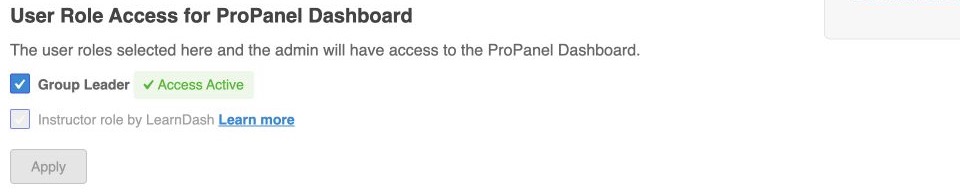
You can control who can open the ProPanel Dashboard, add report links to your site menu, and exclude data from reports under ProPanel > Settings. Add report links to the header menu ProPanel can add links to the dashboard and student results page in your site’s primary menu. Go to ProPanel > Settings > Header Menu Settings and enable the setting for each page to include: Add the link of the ProPanel Dashboard to the Header Menu Add the link of the Student Quiz Reports page to the Header Menu…
N
Courses are the foundation of any learning experience in LearnDash, allowing you to organize learning content, control user enrollment, and deliver structured, guided instruction that drives learner completion. Why Use LearnDash Courses? Solve Content Disorganization: Organizing large amounts of training material can quickly become overwhelming. The visual Course Builder provides a clean drag-and-drop interface to structure lessons, topics, and quizzes into an intuitive learning path without…
N
Overview You do not need a second license to test on a staging or development site. Your Liquid Web software plan limits the number of live sites you can activate, but sites on the approved domains and patterns listed below do not count toward that limit. How it works When you activate your license on a site, our licensing system checks the site’s domain. If the domain matches one of the patterns below, the site is treated as a staging or development site: It still receives plugin updates. It…
N
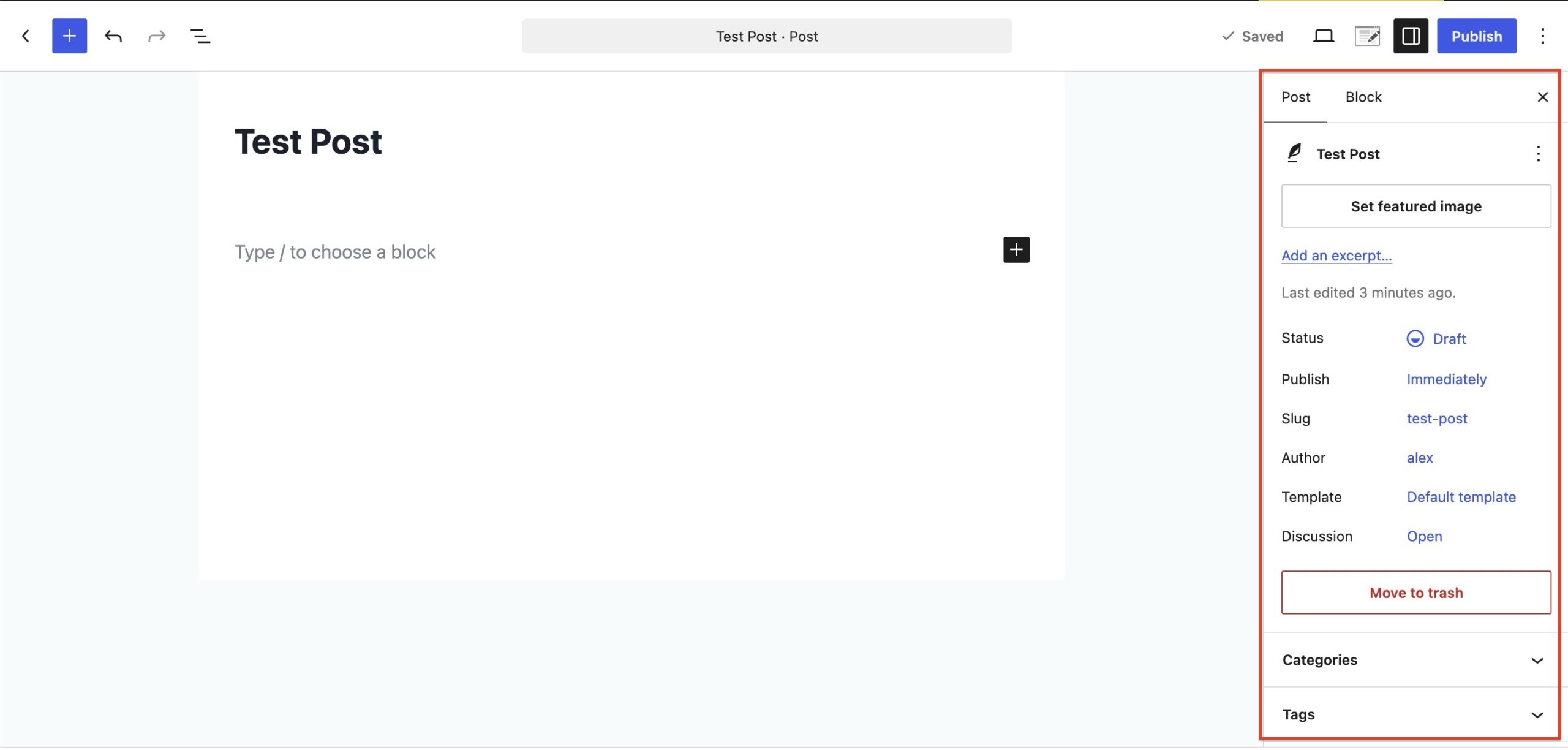
WordPress makes it easy to control when your content goes live. This guide covers how to publish posts immediately, schedule them for a future date and time, and manage your scheduled content queue. Publishing Posts The publishing options for a WordPress post are found on the right-hand side of the editor under the Post tab: WordPress Post publishing options Scheduling Posts Scheduling WordPress posts is an easy way to control when your content is published. Use the built-in WordPress post…
N
WordPress.com and WordPress.org both use the same WordPress software, but they work very differently. WordPress.com hosts and manages your site for you. WordPress.org gives you the free software to install on hosting you choose, with full control over your site. This guide explains the differences so you can pick the right option. What is WordPress? WordPress is free, open source software for building and publishing websites. It powers everything from personal blogs to large business and…
N
When you create content on a WordPress site, you’ll be able to create posts and pages. Both have their respective uses and can add dynamic elements to your site. But what are the differences between WordPress posts and WordPress pages? What is a WordPress Post? A WordPress post is what makes up the blog aspect of your site. WordPress posts: usually provide news or information updates about a certain topic are listed in reverse chronological order can be tagged, categorized, or archived make up…
N
If you’ve ever requested help with customizing something in a WordPress website, you’ve likely heard someone say “make sure you create a child theme first”. This is really good advice; you absolutely should do that. But why? And more importantly, how? And what is a child theme anyway? What is a child theme? A child theme is a WordPress theme that inherits all the features, styling, and functionality of another theme (known as the “parent” theme). It acts as a safe workspace, allowing you to…
N
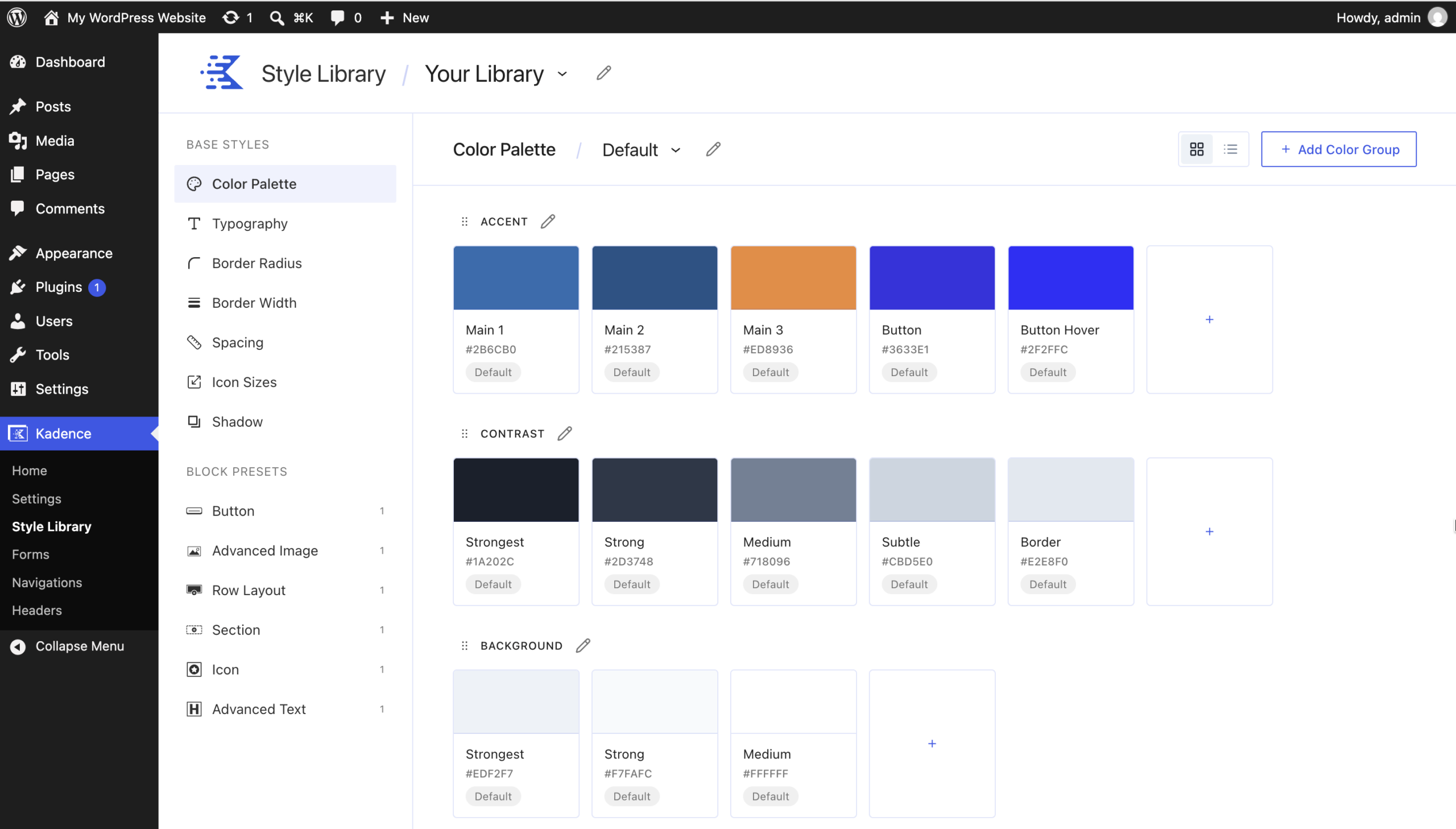
The Kadence Style Library is where you set up the design system for Kadence Blocks in one place. You decide which colors, text sizes, border radius, border thickness, spacing, icon sizes, and more are used within Kadence Blocks. Every Kadence block that uses those values picks them up automatically, and when you change a value later, every block using it updates across your site. You can also save complete block styles as presets. A preset is a saved look for a block, such as a Button or a…
N
Why This Matters Two distinct plugins are available as separate Kadence backup products: Kadence Backups Legacy (formerly BackupBuddy) — the long-running plugin-based product. Now in maintenance mode. Kadence Backups — the current, cloud-first product, managed entirely from Kadence Central. Note: You may still see the older Solid Backups names in WordPress or in documentation. When identifying your backup product, use the plugin slug and behavior rather than the displayed label. Older…
N
Event Tickets 5.30.0 has changed the way RSVP data is stored under the hood. To move your existing RSVPs and tickets onto the new structure, a brief one-time migration is required after you update. On most sites the migration takes only a few seconds. While it runs, RSVPs and tickets are temporarily unavailable on the front end and cannot be edited in the WordPress admin. Once it completes, everything returns to normal automatically. What’s Changing Most of the changes are internal and won’t be…
N
When a feature on your website stops working as expected, such as layout breaks, editor errors, form submission failures, or unexpected display issues, the underlying cause is often a plugin or theme conflict. In WordPress, plugins and themes are created by thousands of different developers. Because they share the same execution environment and hook into the same core scripts, styling rules, and database functions, two pieces of code occasionally run into each other and cause unintended errors.…
N
The Unified License Key is a single key that activates all Unified products in your plan. Instead of tracking a different license key for each plugin or product, you simply copy one key and use it everywhere. Once your license key is activated, you’ll then be able to connect your site to the purchased product, such as Kadence, The Events Calendar, LearnDash, Give, etc… In this example, we’ll walk through activating a Kadence Essentials bundle. Log In to Your Account To retrieve your newly…
N
This guide will go over how to download plugin and theme files from the customer portal, choose between the latest or older versions, and install them on your WordPress site. Reach out to the Support team if you experience any issues with downloads. Before you begin Create a full backup of your WordPress site before replacing the current version. We also recommend testing everything on a staging site first. Opening the Downloads Section To access downloads: Log in to the customer portal Select…
N
This guide will explain how to activate your plugin or theme license, connect sites to your subscription, manage active domains, move licenses between sites, and troubleshoot activation issues. Before you begin You must be logged into the customer portal. Confirm your subscription is active. Confirm your subscription includes an available site slot. Activating Your Plugin or Theme License License activation connects your WordPress site to your subscription and enables: Automatic updates Premium…
N
This guide will show you how to manage your account settings, profile information, saved payment methods, and billing preferences from the customer portal. Before you begin Log into the customer portal. Confirm you can access the account email inbox. Understanding the Dashboard The Dashboard provides a central overview of your account and quick access to common tasks. From the Dashboard, you can: Review subscriptions Open invoices Access license management Review payment methods Open…
N
Learn how to manage invoices, payment methods, billing details, transaction history, and refund requests from the customer portal. Before you begin You must be logged in to your customer portal account. Accessing Your Invoices Log in to the customer portal and select “Invoices” from the left sidebar to manage your transaction history and filter past payments. Here, you can also download or print invoices. Updating Billing Details Billing details control the address and business information…
N
Learn how to reach out for product support from our website and through the customer portal. Contacting Support from the Website If you cannot log into the portal or need help directly from the website https://www.liquidweb.com/, you can reach support through the following channels: From the Navigation Bar: Click Support in the top-right header menu. Select Software Support or Support & Billing. From the Footer: Scroll to the bottom of the page. Under Company, click Contact to view all…